LAN
LAN (Local Area Network) refers to the local network that connects all local devices (call LAN devices) under Edge gateway. Through the LAN, LAN devices can communicate with each other and are managed by the Edge gateway, which provides access to external networks. LAN menu provide LAN related settings, including DHCP Server settings, Static Leases, and Client list.
DHCP Server settings
DHCP (Dynamic Host Configuration Protocol) is a network protocol used to automatically assign IP addresses and other network configuration details, like subnet masks and default gateways.
IQEdgePro support DHCP (Dynamic Host Configuration Protocol) to simplify LAN network management. Go to Network >> LAN >>DHCP Server settings to view and configure LAN DHCP settings.
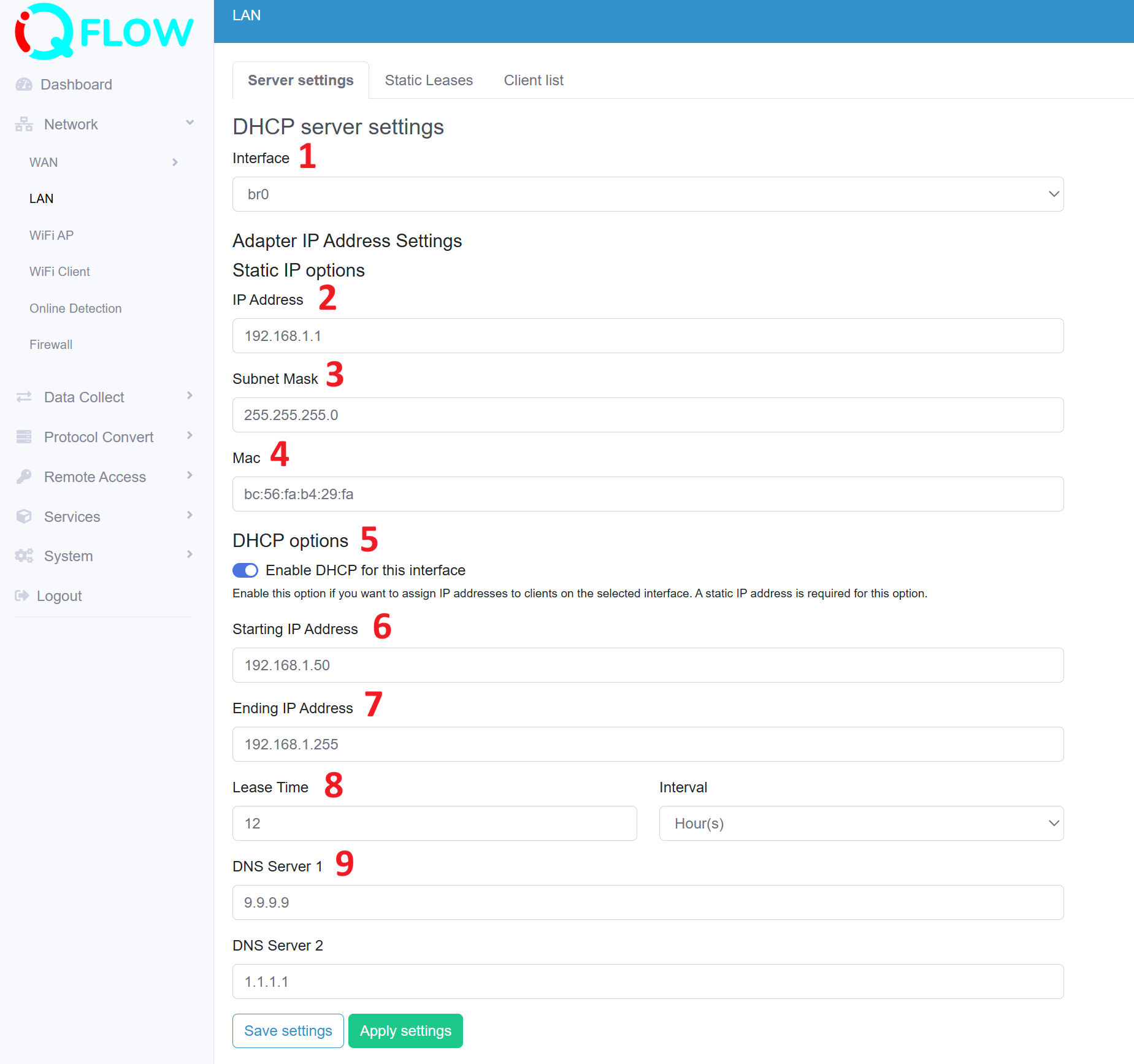
- View the interface for LAN network, default is br0
- Configure the IP address of Edge gateway, default is 192.168.1.1
- Configure the Subnet Mask, default is 255.255.255.0
- View the Mac address of interface br0
- Enable DHCP for this LAN devices connection
- Configure the starting IP address for DHCP assigned IP address range
- Configure the ending IP address for DHCP assigned IP address range
- The Lease Time of DHCP assigned IP address
- Configure the DNS for LAN devices.
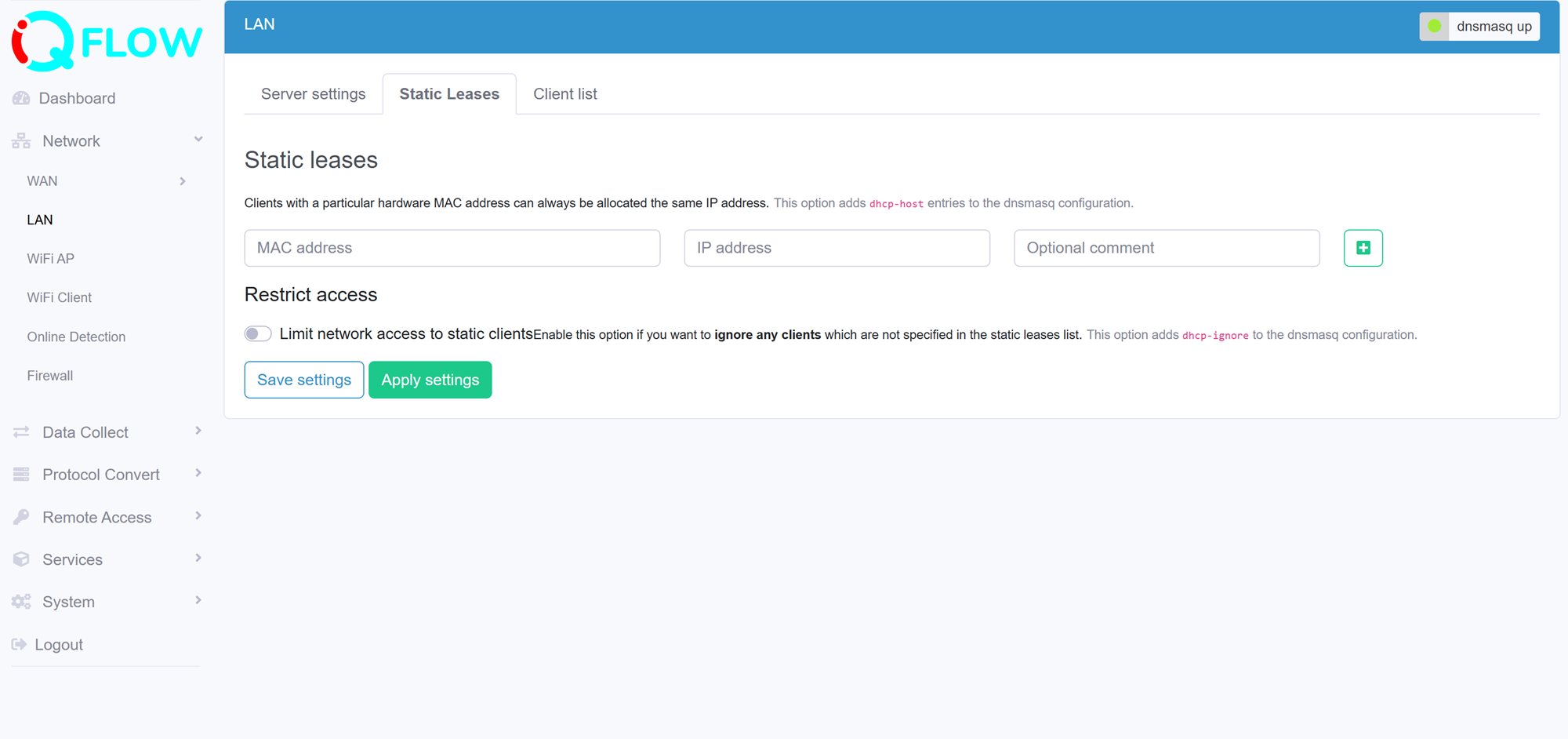
Static Leases
Static Leases provide an option for user allocate LAN IP address with particular hardware MAC address. This is useful for making your LAN device use solid LAN IP address connected with Edge Gateway.
Client list
Client List shows the LAN devices that actived clients connected on Edge gateway currently.
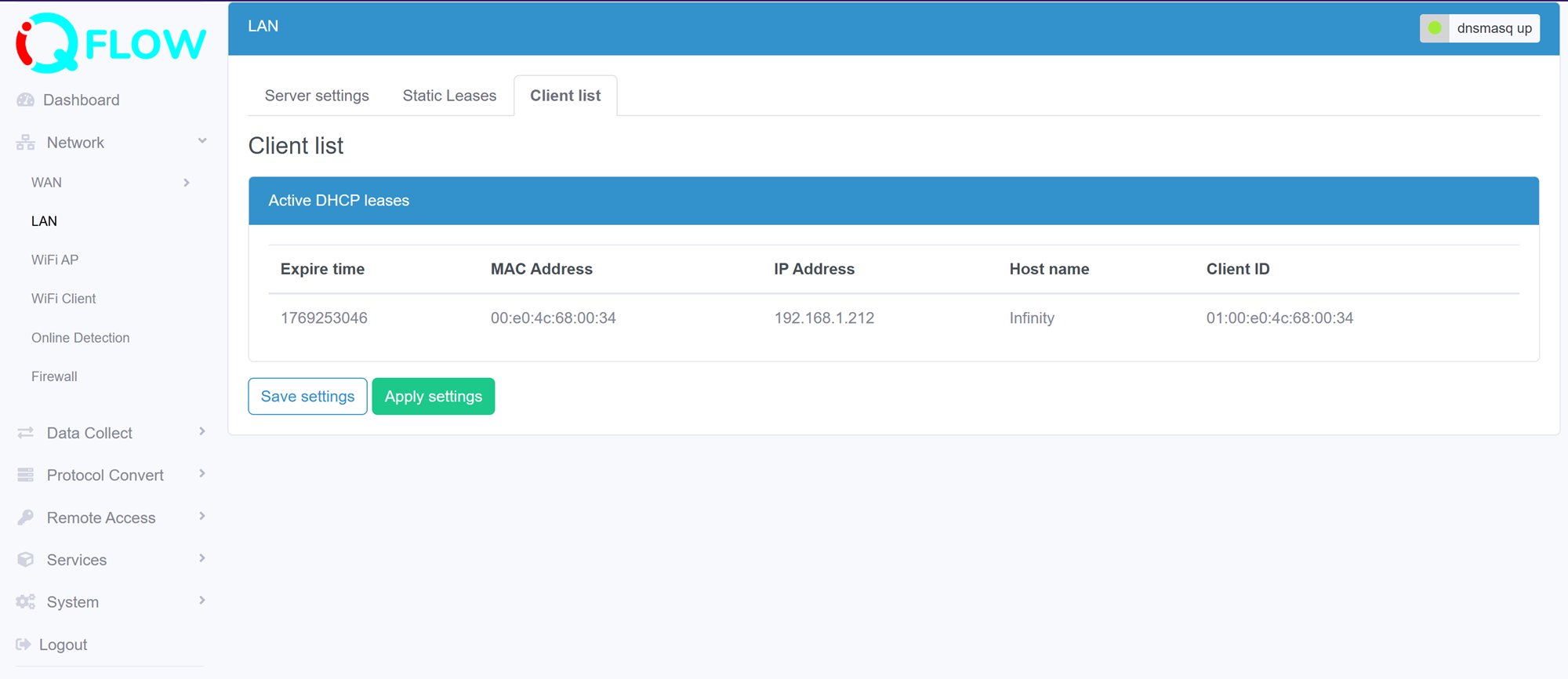
After finished all LAN settings, click Save settings and Apply settings button.
Note: When click Apply settings, network service will restart, the DHCP is restarted and the changes are applied. The settings will take effect after network initialised successfully. You may need use the new Gateway IP address to acces the webUI if LAN segment was changed.